

Based on the syllabus, sample items, and scoring guide shared BELOW , here is comprehensive breakdown for mastering offline publications. (business cards, flyers, calendars, invitation cards, letterheads and certificates)
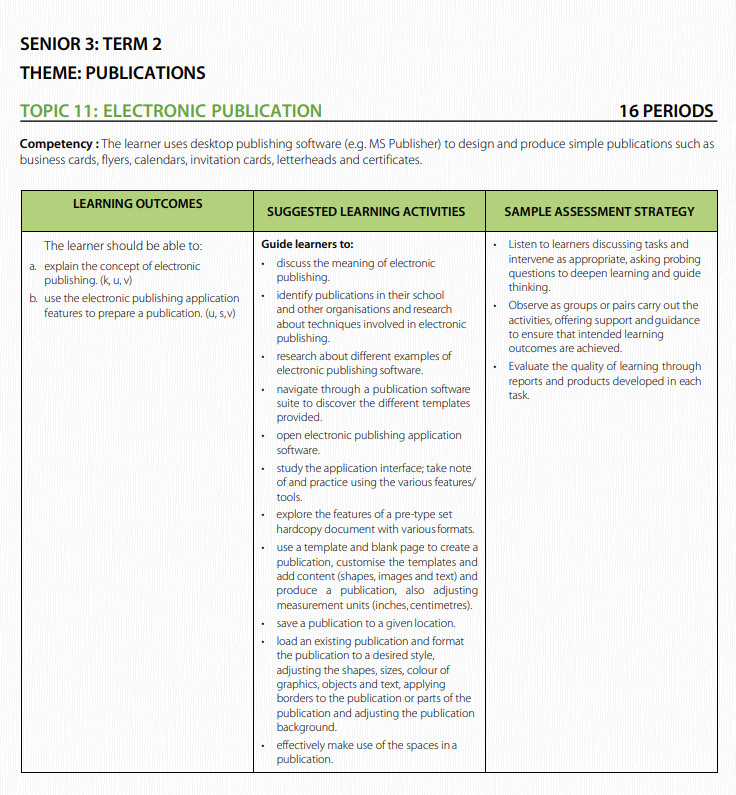
SYLLABUS
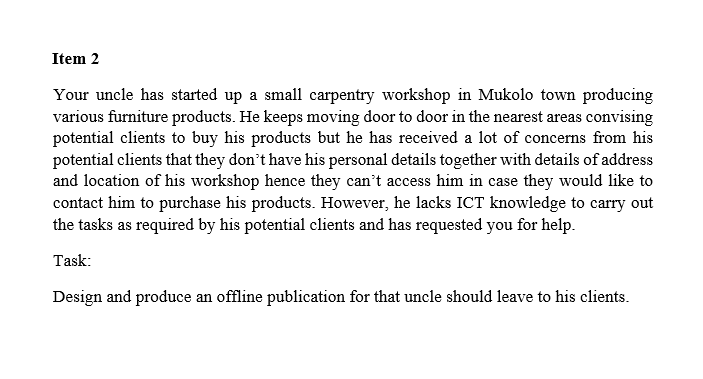
SCENARIO
SCORING GUIDE
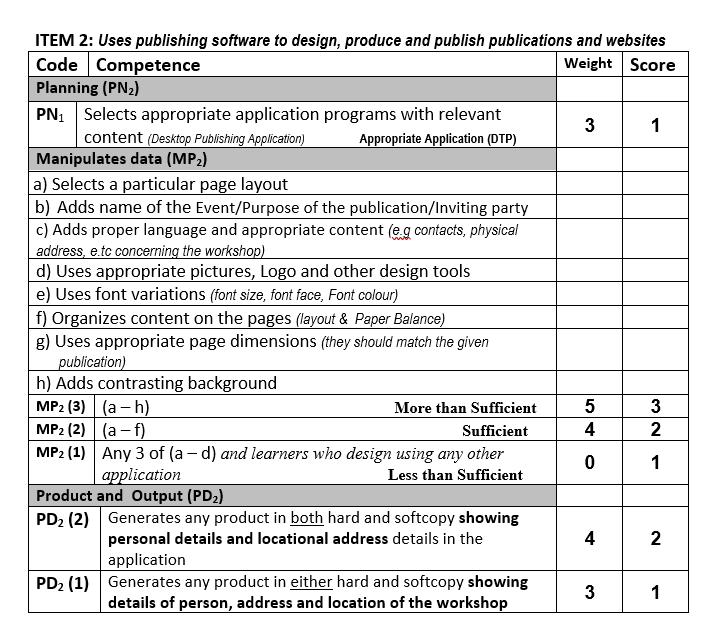
UNDERSTANDING THE MARKS BREAKDOWN
| Competency | Code | Weight | Max Score | What’s Needed |
|---|---|---|---|---|
| Planning | PN | 3 | 2 | Select appropriate application (Desktop Publishing – MS Publisher) |
| Manipulation | MP | 5 | 3 | Complete items (a-h) – More than Sufficient (5+ items = 3 marks) |
| Product/Output | PD | 4 | 2 | BOTH hard and softcopy showing all required details |
| TOTAL | 7 (SCORES) |
CRITICAL: To score MP₂ (3 marks), you must complete at least 5-8 of the manipulation tasks (a-h). Doing only 3-4 tasks = 1 mark. Doing fewer = 0 marks.
SECTION 1: THEORETICAL KNOWLEDGE
1.1 What is Electronic Publishing?
Definition: Using computer software to create, design, and produce publications such as business cards, flyers, calendars, invitation cards, letterheads, and certificates.
1.2 Desktop Publishing Software
Primary Software: Microsoft Publisher (most common in UCE exams)
Alternatives: Adobe InDesign, Scribus, Corel Publisher
1.3 Types of Publications & Their Specific Content
Each publication type requires DIFFERENT content. Here’s what to include:
SECTION 2: CONTENT GUIDE FOR EACH PUBLICATION TYPE
2.1 BUSINESS CARD
Purpose: Professional identification and contact information
MUST INCLUDE:
- Personal/Business Name (e.g., “Mukolo Carpentry Workshop” or “John Mukolo”)
- Job Title/Profession (e.g., “Professional Carpenter & Furniture Maker”)
- Physical Address/Location (e.g., “Plot 45, Main Street, Mukolo Town”)
- Contact Details:
- Phone number(s)
- Email address
- Logo (if available – furniture/carpentry related)
- Services Offered (brief – e.g., “Custom Furniture | Repairs | Design”)
- Professional design with contrasting colors
Example Layout:
┌─────────────────────────────┐
│  [LOGO]   MUKOLO CARPENTRY  │
│           Workshop          │
│                             │
│  Professional Furniture     │
│  Maker & Designer           │
│                             │
│  📍 Plot 45, Main Street    │
│     Mukolo Town             │
│  📞 +256 772 123456         │
│  ️ [email protected]        │
│                             │
│  Custom Furniture | Repairs │
└─────────────────────────────┘
2.2 FLYER / POSTER
Purpose: Advertising products, services, or events
MUST INCLUDE:
- Headline/Title (Catchy – e.g., “QUALITY FURNITURE AT AFFORDABLE PRICES!”)
- Organization/Business Name
- Purpose/Event Details (if advertising an event)
- Description of Products/Services
- Special Offers/Discounts (if any)
- Contact Information:
- Physical location/address
- Phone numbers
- Business hours
- Images/Pictures (relevant to the product/service)
- Logo
- Call to Action (e.g., “Visit Us Today!” or “Call Now for Free Quote!”)
- Eye-catching design with contrasting background
2.3 INVITATION CARD
Purpose: Inviting people to an event
MUST INCLUDE:
- Inviting Party/Organization Name (e.g., “Mr. and Mrs. Mukolo” or “Mukolo Secondary School”)
- Event Name/Purpose (e.g., “Wedding Ceremony”, “Graduation Party”, “School Prize-Giving Day”)
- Date and Time (e.g., “Saturday, 15th July 2026 at 2:00 PM”)
- Venue/Location (full address – e.g., “Mukolo Town Hall, Plot 12 Main Street”)
- RSVP Details:
- Contact person
- Phone number
- Deadline for response
- Dress Code (if applicable – e.g., “Formal Attire”)
- Special Instructions (e.g., “No Gifts Please” or “Bring Your Swimming Costume”)
- Decorative elements appropriate to the event
- Elegant design with proper font variations
Example:
─────────────────────────────────┐
│         YOU'RE INVITED!         │
│                                 │
│    Mr. and Mrs. Mukolo          │
│         invite you to           │
│                                 │
│    the Wedding Ceremony         │
│         of their daughter       │
│                                 │
│    SARAH & DAVID                │
│                                 │
│    Saturday, 15th July 2026     │
│    2:00 PM                      │
│                                 │
│    Mukolo Town Hall             │
│    Plot 12, Main Street         │
│                                 │
│    RSVP: Mary - 0772 123456     │
│    by 1st July 2026             │
│                                 │
│    Formal Attire                │
└─────────────────────────────────┘
2.4 LETTERHEAD
Purpose: Official correspondence for businesses/organizations
MUST INCLUDE:
- Organization/Business Name (prominently at top)
- Logo (professional, high-quality)
- Physical Address (complete location)
- Contact Information:
- Telephone numbers
- Email address
- Website (if available)
- Tagline/Slogan (optional – e.g., “Quality Furniture Since 2010”)
- Professional design with proper spacing
- Header section clearly separated from body
- Footer (optional – can repeat contact info or add registration details)
Layout:
─────────────────────────────────┐
│  [LOGO]  MUKOLO CARPENTRY       │
│          WORKSHOP LTD.          │
│                                 │
│  Plot 45, Main Street, Mukolo   │
│  Tel: +256 772 123456           │
│  Email: [email protected]         │
│  www.mukolocarpentry.com        │
├─────────────────────────────────┤
│                                 │
│                                 │
│  [Body of letter goes here]     │
│                                 │
│                                 │
└─────────────────────────────────┘
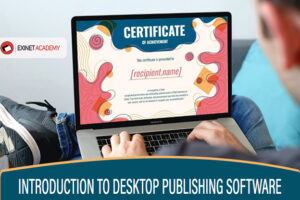
2.5 CERTIFICATE
Purpose: Recognition of achievement, completion, or participation
MUST INCLUDE:
- Title (e.g., “CERTIFICATE OF ACHIEVEMENT” or “CERTIFICATE OF COMPLETION”)
- Presenting Organization (e.g., “Mukolo Secondary School” or “Uganda Certificate of Education”)
- Recipient Name (space for name – e.g., “This is to certify that [Name]”)
- Achievement Description (e.g., “has successfully completed the course in…” or “has demonstrated excellence in…”)
- Date of Issue
- Authorized Signatures (with titles – e.g., “Headteacher”, “Director”)
- Official Seal/Stamp (if applicable)
- Certificate Number (optional – for official certificates)
- Decorative border (formal, elegant)
- Professional fonts (script/calligraphy for title, formal for body)
- Logo of issuing organization
Example:
┌═══════════════════════════════┐
│   ╔═══════════════════════╗   │
│   ║  CERTIFICATE OF       ║   │
│   ║  COMPLETION           ║   │
│   ╚═══════════════════════╝   │
│                               │
│   Mukolo Secondary School     │
│                               │
│   This is to certify that     │
│                               │
│   JOHN MUKOLO                 │
│                               │
│   has successfully completed  │
│   the Senior 4 ICT Course     │
│   with distinction            │
│                               │
│   Date: 15th July 2026        │
│                               │
│   _______________             │
│   Headteacher                 │
│                               │
│   _______________             │
│   ICT Teacher                 │
│                               │
└═══════════════════════════════┘
2.6 CALENDAR
Purpose: Display dates, months, and events
MUST INCLUDE:
- Year (e.g., “2026 CALENDAR”)
- Organization/Business Name (if promotional)
- All 12 Months (or the specific months required)
- Days of the Week (Sunday to Saturday or Monday to Sunday)
- Dates (correctly numbered)
- Public Holidays marked (if applicable)
- Special Events/Dates highlighted (if required)
- Logo (if promotional)
- Contact Information (if promotional calendar)
- Attractive images/design for each month (optional but recommended)
- Proper spacing and alignment
SECTION 3: PRACTICAL SKILLS – THE 8 MANIPULATION TASKS
To score 3/3 for MP₂, you must demonstrate these skills:
MP(a) – Select a Particular Page Layout
What to do:
- Choose appropriate layout from Publisher templates OR
- Create a custom layout
- Examples: Blank page, brochure, business card template, flyer template
- Tip: Match layout to publication type (business card = business card template)
MP(b) – Add Name of Event/Purpose/Inviting Party
What to do:
- For Business Card: Add business name and profession
- For Flyer: Add event name or business name
- For Invitation: Add inviting party (who is inviting) and event purpose
- For Letterhead: Add organization name
- For Certificate: Add issuing organization and certificate title
- Make it PROMINENT – use larger font, bold, or different color
MP(c) – Add Proper Language and Appropriate Content
What to do:
- Use professional language (no slang)
- Include contact details:
- Physical address/location
- Phone number(s)
- Email address
- Add relevant content specific to the scenario
- For the carpentry example:
- “Quality furniture at affordable prices”
- “Custom-made tables, chairs, beds”
- “Workshop location: Plot 45, Mukolo Town”
- “Contact: 0772 123456”
MP(d) – Use Appropriate Pictures, Logo, and Design Tools
What to do:
- Insert relevant images (e.g., furniture for carpentry workshop)
- Add logo if provided or create a simple one
- Use Publisher design tools:
- Shapes (rectangles, circles, lines)
- Text boxes
- WordArt for titles
- Borders and shading
- Ensure images are:
- High quality (not pixelated)
- Relevant to the content
- Properly sized (not stretched)
MP(e) – Use Font Variations
What to do:
- Font Size:
- Title: 24-36pt (large and prominent)
- Subtitles: 14-18pt
- Body text: 10-12pt
- Font Face (Type):
- Use professional fonts (Arial, Calibri, Times New Roman)
- Use decorative fonts ONLY for titles (e.g., for certificates)
- Maximum 2-3 different fonts per publication
- Font Color:
- Use contrasting colors (dark text on light background or vice versa)
- Avoid more than 3-4 colors
- Ensure readability
MP(f) – Organize Content on Pages (Layout & Paper Balance)
What to do:
- Balance: Distribute content evenly (not all on one side)
- Alignment: Use consistent alignment (left, center, or justified)
- White Space: Don’t overcrowd – leave empty spaces
- Grouping: Related items should be together (e.g., all contact info in one section)
- Visual Hierarchy: Most important information should stand out
- Margins: Maintain proper margins (don’t put text at the very edge)
MP(g) – Use Appropriate Page Dimensions
What to do:
- Business Card: 3.5″ x 2″ (8.9cm x 5.1cm) – STANDARD SIZE
- Flyer/Poster: A5 (14.8cm x 21cm) or A4 (21cm x 29.7cm)
- Invitation Card: 5″ x 7″ (12.7cm x 17.8cm) or A5
- Letterhead: A4 (21cm x 29.7cm) – STANDARD
- Certificate: A4 or A3 (29.7cm x 42cm)
- Calendar: A4 or custom size
- How to set in Publisher:
- File → Page Setup → Select size or enter custom dimensions
MP(h) – Add Contrasting Background
What to do:
- Add background color that contrasts with text
- Examples:
- Light blue background with dark blue/black text
- White background with colored elements
- Gradient background (subtle)
- OR add background image (watermark-style, not too dark)
- Ensure text is readable – don’t use dark text on dark background
- How to add in Publisher:
- Page Design → Background → Choose color or image
SECTION 4: STEP-BY-STEP PRACTICAL WORKFLOW
Step 1: Read the Scenario Carefully
- Identify what type of publication is needed
- Note ALL the specific requirements mentioned
- Identify the target audience
- Extract key information (names, addresses, contacts, etc.)
Example from the carpentry scenario:
- Type: Business card or flyer (offline publication)
- Business Name: Uncle’s carpentry workshop (create a name if not given)
- Products: Various furniture products
- Location: Mukolo town
- Problem: Clients need personal details, address, location
- Solution: Create publication with all contact information
Step 2: Planning (PN₁) – 1 Mark
Open Microsoft Publisher
- Click Start → Programs → Microsoft Publisher
- Choose appropriate template:
- For business card: “Business Cards”
- For flyer: “Flyers”
- For invitation: “Invitations”
- For letterhead: “Letterheads”
- For certificate: Search “Certificates” or use blank
- For calendar: “Calendars”
- OR use Blank Page if you want full control
Evidence of Planning:
- Think about layout before starting
- Sketch a rough design on paper (optional but helpful)
Step 3: Set Page Dimensions (MP-g)
- Go to Page Design tab
- Click Size
- Select appropriate size OR click Create New Page Size
- Enter dimensions as per publication type (see Section 3g above)
Step 4: Add Background (MP₂-h)
- Go to Page Design tab
- Click Background
- Choose a color that:
- Contrasts with text
- Is professional
- Matches the theme
- Tip: Light colors work best (light blue, light gray, cream)
Step 5: Add Title/Heading (MP-b)
- Click Insert → Draw Text Box
- Draw a box at the top
- Type the business name or event title
- Format:
- Font size: 24-36pt
- Font: Bold, professional
- Color: Contrasting (dark blue, dark green, black)
- Center align
Step 6: Add Logo and Images (MP-d)
- Click Insert → Pictures
- Browse for logo or relevant images
- Resize: Click and drag corners (hold Shift to maintain proportions)
- Position: Place strategically (usually top left or center)
- Add more images if needed (products, decorations)
Step 7: Add Content (MP-c)
Create text boxes for:
For Business Card/Flyer:
Text Box 1 - Profession/Services:
"Professional Carpenter & Furniture Maker"
"Custom Furniture | Repairs | Design"

Text Box 2 - Location:
"Workshop Location:"
"Plot 45, Main Street"
"Mukolo Town"

Text Box 3 - Contact:
"Contact Us:"
"Tel: +256 772 123456"
"Email: [email protected]"
"Business Hours: Mon-Sat, 8AM-6PM"
Format each text box:
- Font size: 10-14pt
- Font: Arial, Calibri, or Times New Roman
- Color: Dark (black, dark blue, dark gray)
- Align appropriately
Step 8: Apply Font Variations (MP-e)
Title:
- Size: 28-36pt
- Face: Bold, possibly decorative
- Color: Dark blue or dark green
Subtitles/Headings:
- Size: 14-18pt
- Face: Bold
- Color: Medium blue or green
Body Text:
- Size: 10-12pt
- Face: Regular
- Color: Black or dark gray
Contact Details:
- Size: 11-12pt
- Face: Regular or Bold
- Color: Dark blue or black
Step 9: Organize Content (MP₂-f)
Check for:
- Balance: Is content spread evenly? Not too heavy on one side?
- Alignment: Are text boxes aligned properly?
- Spacing: Is there enough white space?
- Grouping: Are related items together? (all contacts in one area)
- Visual flow: Can the eye move naturally from top to bottom?
Adjust:
- Move text boxes by clicking and dragging
- Resize boxes by dragging edges
- Use Align tool (Format → Align) to line up objects
- Use Distribute tool to space items evenly
Step 10: Add Final Touches
- Add borders/shapes if needed (Insert → Shapes)
- Add decorative elements (lines, icons)
- Review spelling (Review → Spelling)
- Check all requirements from the scenario are met
Step 11: Save (Soft Copy) – PD₂
- Click File → Save As
- Choose location (e.g., “My_School” folder or create “Publication” folder)
- File name: Use descriptive name (e.g., “Mukolo_Carpentry_Card”)
- Save as: Publisher Document (.pub) – this is your working file
- ALSO save as PDF:
- File → Export → Create PDF/XPS
- This ensures formatting is preserved
Step 12: Print (Hard Copy) – PD₂
CRITICAL: You MUST print to score full marks!
- Click File → Print
- Check print preview
- Select printer
- Settings:
- Pages: All (or specific page if multi-page)
- Copies: At least 1
- Color: Color (if you used colors)
- Click Print
If no printer available in exam:
- Still attempt to print (File → Print) to show evidence
- Inform the examiner if printer is not working
- The soft copy MUST be complete and print-ready
SECTION 5: EXAM DAY CHECKLIST
Planning (PN₁) – 1 mark
- [ ] Opened Microsoft Publisher
- [ ] Selected appropriate template/publication type
Manipulation (MP) – Need 5+ for 3 marks
- Selected appropriate page layout
- Added business/event name prominently
- Added proper content (contacts, address, location)
- Inserted logo/pictures/design elements
- Used font variations (size, face, color)
- Organized content properly (balanced layout)
- Set appropriate page dimensions
- Added contrasting background
Product/Output (PD₂) – 2 marks
- [ ] SOFT COPY: Saved as .pub file (and preferably PDF)
- [ ] HARD COPY: Printed the publication
- [ ] CONTENT CHECK: All required details included:
- Personal/Business name
- Physical address/location
- Contact details (phone, email)
- Purpose/services
SECTION 6: MARKS BREAKDOWN SUMMARY
| Component | Marks Available | How to Get Full Marks |
|---|---|---|
| Planning (PN₁) | 1 | Open MS Publisher and select appropriate template |
| Manipulation (MP) | 3 | Complete at least 5-8 tasks (a-h) |
| Product/Output (PD₂) | 2 | Save soft copy AND print hard copy |
| TOTAL | 7 MARKS | Do ALL steps above |
SECTION 7: COMMON MISTAKES TO AVOID
Planning Mistakes:
- Using wrong software (e.g., using Word instead of Publisher)
- Not selecting appropriate template
Manipulation Mistakes:
- Missing page dimensions – using default size when specific size is needed
- No background – plain white background with no contrast
- Poor font choices – all text same size/color
- No images/logo – text-only publication
- Missing contact details – no phone, email, or address
- Cluttered layout – too much text, no white space
- Wrong content – not addressing the scenario requirements
- Spelling errors – unprofessional
Output Mistakes:
- Forgetting to print – only saving soft copy = lose 1 mark
- Not saving – only printing = lose 1 mark
- Saving in wrong format – not saving as .pub or PDF
- Printing without checking – errors on printed copy
Content-Specific Mistakes:
For Business Card:
- Making it too large (should be business card size)
- Missing essential contact info
- Too much text (keep it concise)
For Flyer:
- No clear headline
- No call to action
- Missing images
For Invitation:
- Missing date/time/venue
- No RSVP details
- Wrong tone (too casual for formal event)
For Certificate:
- No signature lines
- No date
- Unprofessional design
For Letterhead:
- Missing logo
- Incomplete contact info
- Poor spacing
For Calendar:
- Wrong dates
- Missing month names
- Poor alignment
SECTION 8: SCENARIO-SPECIFIC GUIDES
SCENARIO 1: CARPENTRY WORKSHOP (Your Uncle’s Business)
What they want: Offline publication (business card or flyer)
Required Content:
- Business Name: Create one (e.g., “Mukolo Carpentry Workshop”)
- Owner’s Name: Your uncle’s name (if given, or create one)
- Products: “Quality furniture – tables, chairs, beds, cabinets”
- Location: “Mukolo Town” (be specific – add plot number, street)
- Contact Details:
- Phone number (create if not given)
- Email (create if not given)
- Services: “Custom furniture making, repairs, design consultation”
- Business Hours: (optional but good to add)
Recommended Publication Type: Business Card (to leave with clients)
Design Approach:
- Size: Standard business card (3.5″ x 2″)
- Background: Light wood color or light blue
- Logo: Simple furniture icon (chair/table)
- Colors: Brown (wood), blue (professional)
- Fonts: Bold for business name, regular for details
SCENARIO 2: SCHOOL EVENT (If scenario involves school)
What they might want: Invitation card, flyer, or letterhead
Required Content:
- School Name: (e.g., “Mukolo Secondary School”)
- Event Name: (e.g., “Annual Prize-Giving Day 2026”)
- Date & Time: (specific date and time)
- Venue: School hall or specific location
- Inviting Party: “The Headteacher and Staff” or “School Administration”
- Contact: School phone/email
- Special Instructions: Dress code, RSVP details
SCENARIO 3: BUSINESS PROMOTION
What they might want: Flyer or poster
Required Content:
- Headline: Catchy title
- Business Name: Full name
- Products/Services: Detailed list
- Special Offers: Discounts, promotions
- Location: Full address
- Contacts: Phone, email, social media
- Images: Product photos
- Call to Action: “Visit us today!” “Call now!”
SECTION 9: PUBLISHER TOOLS YOU MUST KNOW
Text Tools:
- Text Box: Insert → Draw Text Box
- WordArt: Insert → WordArt (for decorative titles)
- Font Formatting: Home tab (size, color, bold, italic)
Design Tools:
- Page Design Tab:
- Background
- Size (page dimensions)
- Templates
- Insert Tab:
- Pictures
- Shapes
- Icons
- Tables
Formatting Tools:
- Format Tab:
- Shape Fill (color)
- Shape Outline (borders)
- Align (alignment)
- Distribute (spacing)
- Rotate
File Management:
- Save: Ctrl+S
- Save As: F12
- Export to PDF: File → Export → Create PDF
- Print: Ctrl+P
SECTION 10: FINAL TIPS FOR SUCCESS
Before the Exam:
- Practice all publication types – don’t just focus on one
- Memorize standard sizes – business card, A4, A5, etc.
- Learn keyboard shortcuts – saves time
- Create templates – practice creating each type from scratch
- Review past papers – understand common scenarios
During the Exam:
- Read the scenario twice – underline key requirements
- Plan for 2 minutes – decide on layout, colors, content
- Start with page setup – set dimensions FIRST
- Work systematically – follow the workflow in Section 4
- Check off requirements – tick each item from the scenario as you add it
- Save early, save often – don’t lose your work
- Print 10 minutes before end – don’t wait until the last minute
- Review your work – check spelling, alignment, completeness
QUICK REFERENCE: PUBLICATION CONTENT CHEAT SHEET
| Publication | Essential Content | Standard Size |
|---|---|---|
| Business Card | Name, profession, address, phone, email, logo | 3.5″ x 2″ |
| Flyer | Headline, business name, services, contacts, images, call to action | A5 or A4 |
| Invitation | Inviting party, event name, date/time, venue, RSVP, dress code | 5″ x 7″ or A5 |
| Letterhead | Organization name, logo, address, phone, email, website | A4 |
| Certificate | Title, organization, recipient name, achievement, date, signatures, seal | A4 or A3 |
| Calendar | Year, months, dates, days, holidays, organization name | A4 |
FINAL WORD
If you follow this guide and practice regularly, you will:
- Score 1/1 for Planning (PN₁)
- Score 3/3 for Manipulation (MP) by completing 5+ tasks
- Score 2/2 for Product/Output (PD₂) with both hard and soft copies
- TOTAL: 7/7 MARKS – Flying Colours!
Remember:
- Practice makes perfect
- Always read the scenario carefully
- Include ALL required information
- BOTH hard and soft copy are mandatory
- Quality matters – neat, professional, error-free
Good luck with your UCE ICT exams! You’ve got this!



 Exinet Academy